
Yes, you can automate invoice reminders, and platforms most businesses already use, including Stripe, Xero, MYOB, and QuickBooks Online, support it natively. The process is consistent everywhere: confirm your prerequisites, turn on reminders, set a multi-stage schedule with the right tone, attach a payment link, then test before rolling out. Done properly, it takes less than an hour to configure and keeps chasing payments off your daily to-do list.
TL;DR:
- Automated invoice reminders should include multiple escalation stages and be scheduled to send before, on, and after the due date to maximize effectiveness.
- Ensuring accurate customer emails, sending actual invoices, and testing the setup with a personal account prevent common configuration failures.
- Connecting payment links and syncing with payment processors like Stripe and accounting platforms like Xero or QuickBooks Online reduces the chance of reminders for paid invoices.
- Customizing reminder messages and adjusting timing for different clients, including setting overrides for disputes or payment plans, improves collection rates.
- Monitoring metrics such as open rates, click-throughs, and recovery amounts at each reminder stage helps optimize the system for faster payments and lower days sales outstanding.
Table of Contents
- Why automated invoice reminders help small businesses
- Before you start: prerequisites and checklist
- How to enable and configure reminder schedules
- Connect Stripe and your accounting platform
- Exceptions, overrides and a testing checklist
- Monitoring and optimisation: metrics to track
- Copyable templates and example sequences
- An operator's take on what actually breaks
- Automate reminders and payments with MyAirCare
- Sources
Why automated invoice reminders help small businesses
Chasing unpaid invoices by phone or memory costs time you don't have, and it's the part of running a service business that gets skipped when things get busy. That's exactly when overdue invoices pile up. Automated reminder software removes the guesswork by sending consistent, scheduled follow-ups without anyone having to remember to do it.
Late payment is a persistent problem for small operators, and invoice reminder automation paired with one-click payment links can materially reduce time to payment for businesses that adopt it, according to industry vendor data.
The features worth expecting from any reminder tool:
- Multi-stage sequences that escalate tone as an invoice ages, rather than one generic nag email.
- Timing control to send reminders before, on, or after the due date.
- Branded messaging so reminders look like they came from you, not a generic billing system.
- Embedded payment links that let the client pay in one click from the email itself.
- Automatic cancellation once payment is recorded, so nobody gets a reminder for a bill they've already settled.
Together these features turn invoice follow-up from a manual chore into a background process that runs whether you're on site, in the van, or off the clock entirely.
Before you start: prerequisites and checklist
Reminder automation only works as well as the data behind it. Get these basics right first, or you'll end up with reminders going nowhere, or worse, going to the wrong person.
- Confirm every customer's email address is current and attached to the correct invoice record.
- Check the invoice status is "sent", not just created. Draft invoices sitting unsent won't trigger reminders in most systems.
- Verify invoices are actually being emailed, not just generated and printed or handed over on the job.
- Review user permissions so the right staff member can edit reminder settings and templates.
- Set your organisation's sender email and reply-to address so replies land in an inbox someone actually checks.
- Decide which invoices and customers go on automated schedules, and whether to attach payment links or store a card on file for regulars.
- Create one test invoice addressed to yourself or a colleague to confirm the whole chain works before it touches real customers.
Pro Tip: Send that test invoice to a personal email address, not a work one you check constantly. It shows you exactly what the customer sees, including how the reminder looks in a normal inbox rather than a business dashboard.
How to enable and configure reminder schedules
The mechanics are near identical whether you're working in Stripe, Xero, MYOB, or QuickBooks Online. Each gives you an organisation-level switch, a way to build stages, and a place to set timing.
- Find the reminder settings, usually under invoicing or sales settings, and switch the feature on for your organisation. Xero lets you build up to five separate reminder stages with fully customisable content and timing for each one.
- Set your default stages. A workable three-stage sequence looks like this:
- Stage 1, friendly nudge: 3 days before the due date.
- Stage 2, firm follow-up: on the due date or 3 days after.
- Stage 3, final notice: 14 days after the due date.
- Choose recipients for each stage. Most platforms let you send to the primary contact by default and add a manager or accounts contact on later stages.
- Set per-invoice overrides for cases that need different handling, such as a client on a payment plan or a disputed amount.
- Attach a payment link to every stage, not just the final one. QuickBooks Online allows reminders to be scheduled up to 90 days before or after the due date, with each message's subject and body fully editable.
- Save your templates, send your test invoice through the sequence, then roll it out to all outstanding invoices.
MYOB's Smart Invoice Reminders go a step further, letting you set timing, tone, and recipient on a per-customer basis, useful if you have a mix of reliable regulars and slower-paying commercial accounts.
Connect Stripe and your accounting platform
Payment links and accounting sync do the quiet work that makes automation trustworthy: they stop a client getting a reminder for an invoice they've already paid. Stripe's automatic collection feature schedules multiple reminders around the due date and suppresses them the moment a payment is recorded or processing, which avoids the awkward "I already paid this" reply.
Syncing your accounting platform with your payment processor matters just as much. When Xero or QuickBooks Online reconciles a payment automatically, the reminder sequence for that invoice cancels immediately, rather than relying on someone manually marking it paid.
A short but telling number: MYOB's per-customer tone settings let you keep good clients on a polite tone while defaulting slower payers to firmer language, without touching the underlying schedule.
Common payment methods worth including in the email itself:
- Card payments processed through Stripe.
- BPAY, if your bank supports it for business accounts.
- Direct bank transfer, with account details clearly shown, not buried in a PDF attachment.
On security, card details never touch your inbox or your accounting file directly. Payment processors like Stripe handle card data under PCI DSS standards, and your accounting platform only ever sees the transaction status, not the card number. Check your Stripe fees structure so you know what's deducted before it hits your bank account.
Exceptions, overrides and a testing checklist
Automation without an escape hatch causes more problems than it solves. A client who's disputing an amount, sitting on an agreed payment plan, or has paid half the invoice shouldn't get the same firm reminder as someone who's simply ignoring you.
- Pause or skip reminders for any invoice under dispute or with an agreed alternative payment date.
- Use per-invoice overrides rather than switching off automation for the whole customer account.
- Offer an opt-out for clients who've asked not to receive automated emails, and log it somewhere staff can see.
Testing is not optional. A short cycle of creating a draft invoice, emailing it, triggering the reminder sequence, and simulating a payment will catch most configuration mistakes before customers ever see them.
Pro Tip: Keep a simple handover note listing which customers are excluded from automation and why. New staff shouldn't have to guess which accounts are on manual follow-up.
Monitoring and optimisation: metrics to track
Turning reminders on isn't the finish line. Days Sales Outstanding (DSO), the average time between invoicing and payment, is the number that tells you whether the whole system is actually working.
Track these weekly rather than waiting for a monthly reconciliation to surprise you:
- Open and click rates on reminder emails, to catch sender or subject line problems early.
- Amount recovered per reminder stage, so you know which stage is actually doing the work.
- Escalation threshold, the point at which an unpaid invoice moves from automated reminder to a personal phone call.
A/B testing subject lines and stage timing over a few billing cycles usually reveals more than any single tweak. A tool built for productivity automation can help prioritise which overdue accounts need a human call versus another automated nudge.
Copyable templates and example sequences
Every reminder should include the invoice number, amount owing, due date, and a direct payment link, regardless of which stage it belongs to.
- Stage 1 (3 days before due), friendly: "Just a heads up, invoice [Invoice ID] for [Amount] is due on [Due Date]. Pay securely here: [Pay Link]."
- Stage 2 (on or shortly after due date), firm: "Invoice [Invoice ID] for [Amount] was due on [Due Date] and remains unpaid. Please arrange payment via [Pay Link] as soon as possible."
- Stage 3 (14 days after due date), final: "This is a final notice for invoice [Invoice ID], [Amount], now [X] days overdue. Contact us if there's an issue, otherwise please settle via [Pay Link] immediately."
Keep every message short, always show the payment link prominently, and match the sender name to whoever the client expects to hear from. Consistent invoice payment terms written into the original invoice make every later reminder land more credibly.
An operator's take on what actually breaks
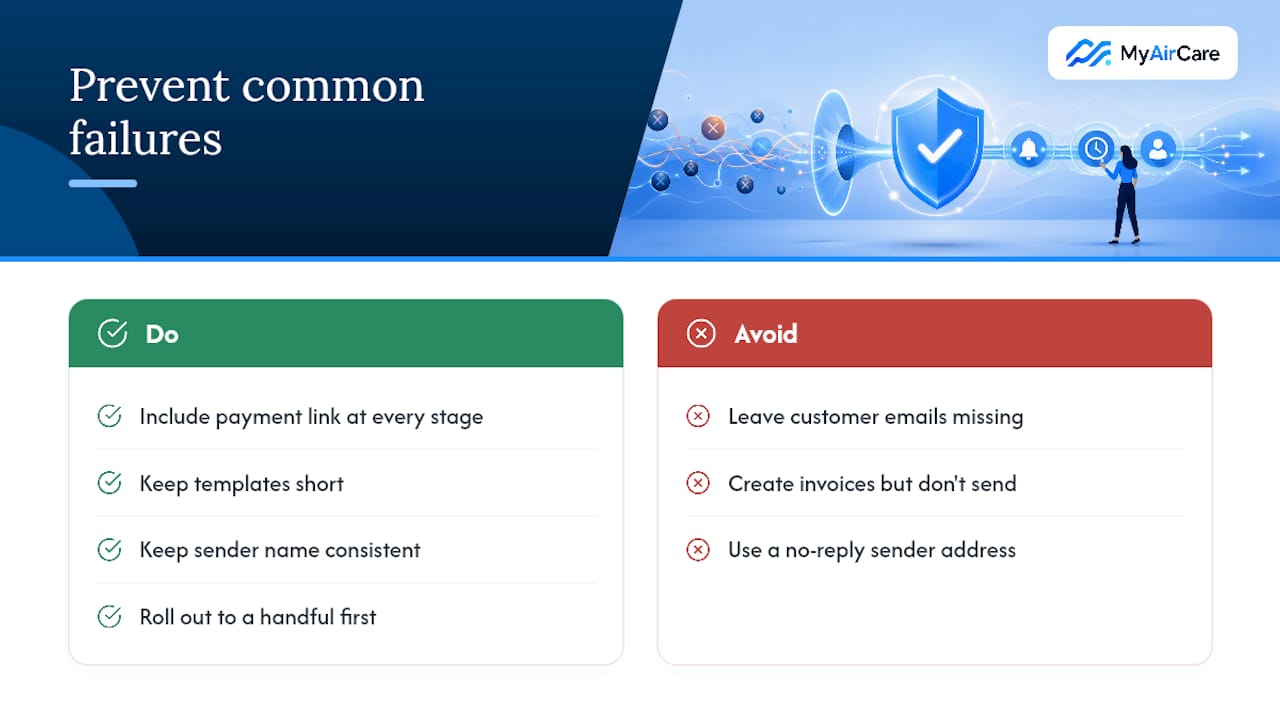
The most common failure isn't the software, it's the setup. Missing customer emails, invoices that were created but never actually sent, and a sender address nobody replies to cause more silent failures than any platform bug.
A payment link in every stage, not just the last one, recovers money faster than a perfectly worded final notice. Keep templates short, keep the sender name consistent, and roll automation out to a handful of invoices before applying it everywhere. Measure for a full billing cycle before you trust the numbers.
— Lewis
Automate reminders and payments with MyAirCare
If you run a mobile service business, invoice reminders are only half the problem. The bigger drain is everything around them: manually creating invoices after a job, chasing payment separately from the booking, and reconciling who's actually paid. MyAirCare handles the booking-to-invoice-to-payment chain in one system, with automated reminders and secure Stripe payments built into the flow, so a completed job turns into a paid invoice without you touching a spreadsheet.

Because bookings, branded messages, and payments sit in one platform, there's no separate reminder tool to configure or accounting sync to double-check, and payment gets recorded against the job automatically. That's less admin for a two-person team juggling call-outs and quotes on top of collections. If you run tenders and larger jobs alongside standard bookings, or want to see the full booking and payment flow in action on a page like Purify Air Con Cleaning's booking page, start by exploring MyAirCare's platform and set up your first automated reminder sequence today.
Sources
For platform-specific setup, go straight to the source: Stripe's automatic collection docs, Xero's reminder setup guide, MYOB's Smart Invoice Reminders help article, and QuickBooks Online's reminder scheduling guide. For message copy ideas, see MyAirCare's appointment reminder templates and booking confirmation email guide.
- Automatic collection — Stripe
- Set up and add invoice reminders — Xero Central
- Send Smart Invoice Reminders — MYOB Help
- Send invoice reminders automatically or manually in QuickBooks Online — QuickBooks Support