
The fastest way to integrate Xero invoices is a native connection or source-specific plugin, with middleware like Zapier or Apideck as the fallback and a custom API build for high-volume or complex workflows. Before connecting anything, confirm three things: Xero admin access on a test organisation, GST correctly mapped to an OUTPUT tax type, and account codes matched to your chart of accounts. Get that mapping wrong and every invoice that syncs afterwards will need manual correction.
TL;DR:
- Proper mapping of tax types and exact tax amounts is crucial to prevent rounding errors and BAS reporting issues in Xero integrations.
- Connecting through a native or plugin system is suitable for small to medium volumes, but high-volume or complex workflows require a custom API build.
- Always test integrations with a demo Xero organization to verify contact, tax, account codes, and invoice accuracy before going live.
- Accurate setup includes mapping sales accounts, tracking categories, and GST types correctly, especially for Australian compliance.
- Automating bookings and payments flow into Xero helps reduce manual invoicing errors, but the key setup step is correctly configuring tax and account mappings beforehand.
Table of Contents
- Choose the right integration approach: native, plugin, middleware or custom API
- What common connectors actually sync into Xero (contacts, line items, tax, payments)
- Step-by-step: connect a typical source to Xero
- Map account codes, tracking categories and GST correctly for Australian reporting
- How payments are recorded and reconciled in Xero after a sync
- Testing checklist and fixes for common sync errors
- How MyAirCare helps Australian service businesses automate invoicing into Xero
- The mapping step everyone skips, then regrets
- Sources
Choose the right integration approach: native, plugin, middleware or custom API
The right method depends on what system you're syncing from, how many invoices you generate monthly, and whether you have someone technical on hand.
A native Xero connection is the simplest option when your platform supports one directly. It requires the least setup and the least ongoing maintenance, but it only works if your source system is on Xero's supported list.
Source-specific plugins fill most of the gap. Invoice Sync for Xero for WooCommerce, for instance, pulls customer contacts, line items, shipping, fees and exact tax amounts straight from an order, using OAuth2 to authenticate and requiring you to map a sales account and tax type once during setup.
Where no plugin exists, middleware steps in. Platforms like Zapier and Apideck sit between your booking or sales system and Xero, translating one app's data into invoice fields Xero understands.
- Native connections: fast to set up, low maintenance, but limited to Xero's supported apps
- Source-specific plugins: automatic syncing of line items, tax and payments for platforms like WooCommerce or Shopify
- Integration platforms (Zapier, Apideck): flexible across many apps, though mapping logic takes time and some plans cap monthly tasks
- Custom API build: suited to high-volume or complex workflows, but needs a developer or integrator
Match the choice to your business type. An eCommerce store usually wants a plugin. A booking-based trade business often does better with middleware or a purpose-built platform. A multi-location agency juggling several Xero organisations usually ends up needing the API.
What common connectors actually sync into Xero (contacts, line items, tax, payments)
Most integrations send the same core fields: customer contact details, line items with quantity and unit price, shipping and fees, tax amounts, the invoice date, and currency. Where they differ is in how carefully they handle tax.
Invoice Sync for Xero passes the exact tax amount calculated at the source rather than sending a tax rate and letting Xero recalculate it. That distinction matters more than it sounds. If Xero recalculates tax independently, rounding differences of a few cents can trigger the dreaded "includes adjustments to tax" warning on reports, which then complicates your BAS reconciliation.

Zapier and Apideck both go further than simple field mapping. Zapier can create and update invoices automatically when an order or payment event fires, and it can update the same invoice later if the source record changes. Apideck's unified connector does something similar but is built for pushing and pulling invoices across multiple source systems at once, which suits agencies or businesses running several sales channels into one Xero file.
Document-extraction tools work differently again. DocuClipper scans invoices and receipts and creates draft bills or sales invoices in Xero for review, updating the same record if you edit it afterwards rather than duplicating it.
The takeaway for setup: passing tax as an amount, not a rate, is the single change most likely to prevent a rounding error down the line.
Step-by-step: connect a typical source to Xero
Before you touch a settings screen, confirm the basics: Xero admin access, an active subscription (or a free demo organisation for testing), HTTPS enabled on your website, and a Client ID and Secret generated through the Xero Developer platform.
- Register an OAuth2 app in the Xero Developer portal to generate your Client ID and Secret.
- Paste those credentials into your plugin or middleware's connection settings.
- Authorise the correct Xero tenant (organisation) when prompted, especially if you manage more than one.
- Open the Mapping tab and set your default sales account and tax type. Choose an OUTPUT tax type such as GST on Income for standard sales.
- Set your trigger behaviour, deciding whether invoices generate on order placement or on payment confirmation.
- Enable "create payment on paid" only once you've mapped it to the correct bank or clearing account.
- Run a test transaction through a demo organisation or a live test order before switching on for good.
Pro Tip: Xero developer accounts let you spin up a free demo company specifically for testing integrations. Use it. Connecting straight to a live organisation on your first attempt is how duplicate invoices end up in front of a client.
Once the test order runs through, check the invoice line items, confirm the tax total matches what your source system calculated, and verify the contact matched correctly rather than creating a duplicate customer record. Check the plugin or middleware log for errors before declaring it done.
Map account codes, tracking categories and GST correctly for Australian reporting
Getting the tax type wrong is the single most common setup error, and it's an easy one to make. Every sale needs an OUTPUT tax type such as GST on Income. INPUT types are designed for purchases and bills; apply one to a sales invoice and validation fails or, worse, your BAS figures come out wrong without any obvious warning.
- Map each product or service category to the sales account code your accountant actually uses for BAS reporting
- Apply tracking categories consistently if you split revenue by location, technician or service line
- For services that are GST-free or zero-rated, select the specific OUTPUT type for that (GST Free Income or No GST), never leave it blank
- Passing exact tax amounts from the source system rather than letting Xero recalculate avoids most rounding disputes
Pro Tip: After setup, run one test invoice through and check it against your Profit & Loss report before switching on live syncing. A five-minute check now saves an afternoon of BAS corrections later.
If you're unsure what a compliant tax invoice needs to include for the reader's benefit, it's worth reviewing tax invoice requirements in Australia before finalising your mapping, since the fields you sync need to match what's legally required on the document.
How payments are recorded and reconciled in Xero after a sync
Once an invoice lands in Xero, the payment side needs just as much attention as the invoice fields did.
- If your connector can record payments automatically, map it to the correct clearing or merchant account, not your general bank account, so bank reconciliation stays clean
- Use Xero's bank feeds to reconcile incoming payments automatically rather than matching manually against synced invoices
- Handle partial payments, refunds and subscription renewals as distinct events, so each one updates or creates a payment record rather than leaving the invoice sitting open
- Decide upfront whether invoices should sync as drafts for manual review or post as approved invoices automatically
For booking-based trades, drafting is usually the safer default: it gives someone a final look before the invoice goes out, particularly for job-based work where the scope can shift on the day. Xero also supports Pay Now buttons on emailed or SMS'd invoices linked to connected payment services, which shortens the gap between job completion and getting paid.
Testing checklist and fixes for common sync errors
Run through this before switching any integration live:
- Connect to a test or demo Xero organisation, not your live file
- Push a test order or booking through and inspect every invoice field
- Confirm the contact matched an existing customer rather than duplicating one
- Check tax totals against your source system's calculation
- Confirm the invoice currency is correct and enabled in Xero
- Push a second identical test to confirm no duplicate invoice is created
- Check the plugin, platform and Xero error logs before marking it complete
Common fixes when something breaks:
- Tax validation failing usually means an INPUT type was applied where an OUTPUT type belongs
- A currency error means that currency hasn't been added to your Xero organisation yet
- Missing account code errors mean the default sales account needs setting in the Mapping tab
- Sync failures after a period of working fine often mean the tenant connection has expired and needs reauthorising
If logs don't make the cause obvious, that's the point to loop in your developer for plugin-level issues or your accountant/bookkeeper for anything touching GST classification.
How MyAirCare helps Australian service businesses automate invoicing into Xero
For an air-con cleaning business, the invoicing problem usually starts earlier than the invoice itself. It starts with a missed call, a double booking, or a job that finishes without anyone raising the paperwork.
A booking and job platform can connect that whole chain: a customer books online, automated reminders keep the job on schedule, and payment is captured securely once the work is done. That sequence, from confirmed booking through to a completed payment, is exactly the kind of structured data that flows cleanly into an accounting system, since the invoice details already exist by the time the job wraps up.
For a sole trader running several jobs a week, this cuts common problems: invoices that never get sent because someone forgot, and payment records that don't match what's on the bank statement. If you're comparing your booking platform's built-in sync against a middleware layer, the rule of thumb is straightforward. Use the built-in sync when your booking volume is steady and your service categories are simple. Reach for middleware only when you're running multiple systems that a single platform can't unify on its own.
The mapping step everyone skips, then regrets
Most guides on this topic spend their time on the connection step: which app, which plugin, which button to click. That's the easy part. The advice that actually prevents problems is far less exciting: get the tax type and account mapping right before you sync a single live invoice.
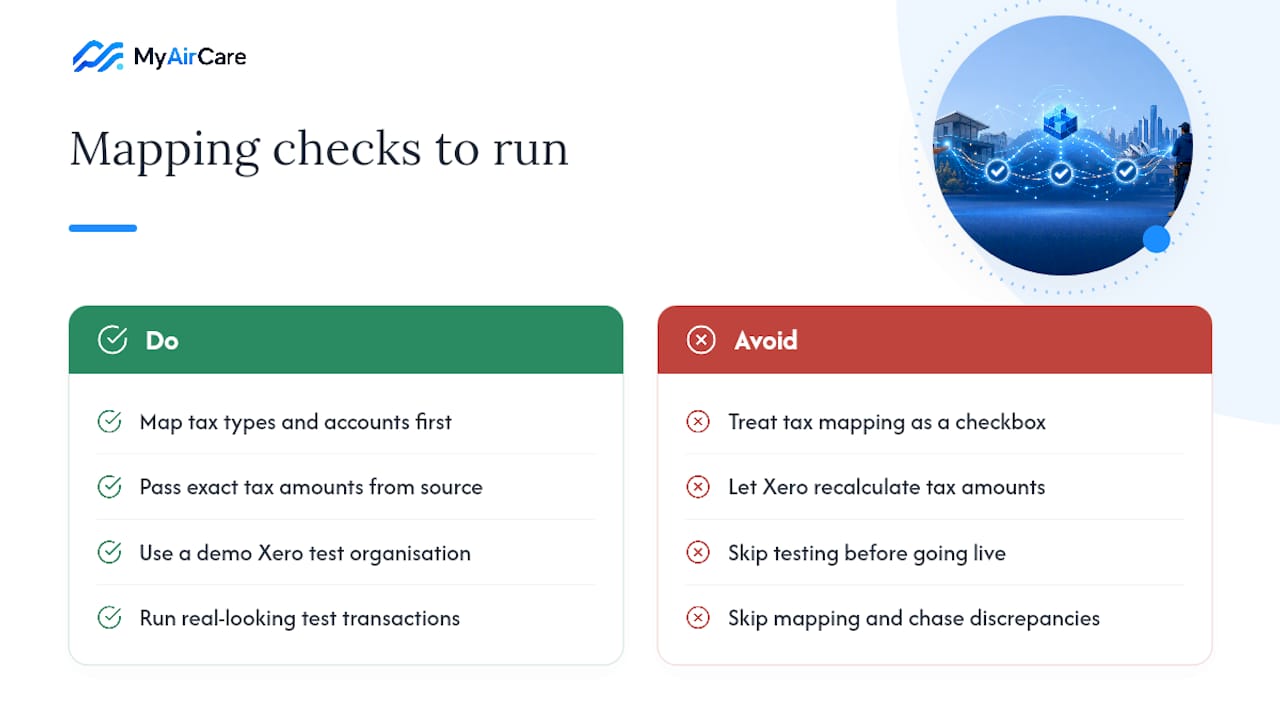
Conventional wisdom treats tax mapping as a checkbox in setup. In practice, it's the difference between a BAS period that reconciles cleanly and one where you're chasing rounding discrepancies across dozens of invoices weeks after the fact. Passing exact tax amounts rather than letting Xero recalculate them isn't a nice-to-have setting buried in a plugin menu. It's the setting that determines whether your integration actually saves time or just moves the manual work from "raising invoices" to "fixing invoices."
If you take one thing from this guide, prioritise the test organisation. Run a handful of real-looking transactions through a demo Xero file before connecting anything live. Businesses that skip this step are the ones posting in support forums three weeks later asking why every invoice has a tax adjustment nobody can explain. Businesses that don't skip it barely notice the integration exists after the first week, which is exactly the point.
— Lewis
Ready to stop chasing missed invoices manually? MyAirCare connects your bookings, reminders and Stripe payments into one workflow built specifically for Australian air-con cleaning businesses, so the invoice data is accurate before it ever needs to touch your accounting system.
Sources
- Xero Invoices API - documentation
- Invoice Sync for Xero — WooCommerce Marketplace
- How to automate Xero — Zapier blog
- Apideck — Xero invoices connector
- Export invoices to Xero — DocuClipper docs