You can be accepting online bookings within one sitting, often in 15 to 30 minutes. Choose a booking tool that fits your business size and budget, add your first service with a duration and price, connect a calendar like Google Calendar or Stripe for payments, then publish your booking link. Platforms including MyAirCare handle most of this setup within a single dashboard.
TL;DR:
- Connection to Google Calendar or Outlook must be instant for effective blocking and freeing up slots, with no delays or duplicate entries.
- Payment setup should be decided upfront, with Stripe or PayPal integration allowing instant confirmation and automated reminders before the appointment.
- Including specific service details, buffer times, and staff assignments reduces booking errors and prevents cascading schedule overlaps.
- Testing the entire booking flow with a real customer account, including SMS reminders, highlights potential silent failures before going live.
- Managing user roles carefully from the start limits errors, especially for small teams sharing access to calendars, payment info, and scheduling details.
Table of Contents
- Online booking setup: what you need before you start
- How do you choose the right booking tool fast?
- Configure services, staff and availability correctly
- Calendar sync and payments: the two integrations that matter most
- Build and embed your booking page or widget
- Test and launch: the checklist before you go live
- How MyAirCare applies booking automation for field services
- Setting up cancellation and rescheduling policies
- Customising booking form fields for the information you actually need
- Managing user roles and permissions within the booking platform
- Analysing booking data to optimise scheduling
- What I've learned watching booking systems for trades in practice
- Get your booking system running with MyAirCare
- Sources
Online booking setup: what you need before you start
An online appointment system runs smoother when you gather the basics first rather than hunting for details mid setup. Sit down with these items ready and the whole process becomes a straight run rather than a stop-start job.
- Business email, business name, timezone, a logo file, and a short welcome message for customers
- A list of services with durations, prices, and any buffer time needed between jobs
- Login details for the calendar account you want to sync (Google Calendar or Outlook)
- Payment account details if you're connecting Stripe or PayPal
- A mobile phone handy to test the booking flow once it's live
Booking software setup goes faster when these are typed out beforehand rather than assembled on the fly. Guides on rapid deployment, including one from FullyBooked, point to the same order: account first, services second, availability third, test last. That sequence avoids the common trap of building a beautiful booking page before you've actually decided what you're selling through it.
How do you choose the right booking tool fast?
Don't get stuck comparing every automated scheduling solution on the market. For a small service business, six criteria matter more than any feature list:
- Embeddable widget you can drop into your existing website
- Shareable booking link for social bios, texts, and email signatures
- Calendar sync with Google Calendar or Outlook to stop double bookings
- Payment integration, usually Stripe or PayPal
- Automated notifications by email and, ideally, SMS
- Staff support if you're not the only person doing the work
Price matters too, but check what's actually included at each tier. A lot of "free" plans cap the number of bookings, strip out SMS reminders, or charge a percentage on every payment processed. If you take bookings from interstate or overseas clients, check where the provider stores customer data, since some tools host everything offshore, which can matter for privacy obligations.
Decide early whether you want a standalone booking page, an embedded widget, or a popup button. A standalone link works best for social media and text messages. An embedded widget keeps visitors on your own site rather than sending them elsewhere, which tends to convert better for anyone already browsing your services. meetergo's guide to adding a booking page breaks down both methods with the actual embed steps.
Pro Tip: Test SMS pricing before you commit. Some platforms charge per message on top of the subscription, and that cost adds up fast if you're sending appointment reminders to a full week of jobs.
Configure services, staff and availability correctly
This is where most bookings go wrong, not at the payment stage. Get these settings right and double bookings, wrong-length appointments, and rushed jobs mostly disappear.
- Build a clear service entry for each offering: title, short description, duration, price, and capacity (how many bookings you can take in that slot).
- Add buffer time between appointments, particularly for jobs that need travel or setup, and assign each service to the right staff member if you're not working solo.
- Set your timezone and working hours, then block out public holidays and any days you're closed so customers can't book into a gap that doesn't exist.
- Set a minimum lead time (say, two hours' notice minimum) so you're not getting bookings for a job starting in ten minutes.
- Write your cancellation policy into the booking rules now, not after the first no-show.
Skipping the buffer time step is the most common mistake. Without it, a 45-minute service booked back-to-back with another leaves zero room for anything running long, and one late job cascades through the rest of your day.
Calendar sync and payments: the two integrations that matter most
Calendar sync exists for one reason: to stop two customers booking the same slot. Connect your primary calendar, whether that's Google Calendar or Outlook, and every online booking blocks that time instantly on both ends. Google's own appointment schedule feature syncs bookings directly into your calendar and supports Stripe for paid appointments, which covers most small operators without needing a separate payment gateway.
Once it's connected, check three things:
- Does a new booking block the slot instantly, or is there a delay?
- Does cancelling a booking free up the slot again straight away?
- Do duplicate entries ever appear when you book manually and via the widget?
On payments, decide upfront whether you're charging in full at booking, taking a deposit, or invoicing after the job. Simplybook notes that a focused setup sequence, including payment connection, can have a small business accepting its first paid appointment in under 30 minutes. Stripe and PayPal both connect with a business email and bank details, usually verified within a day.
Turn on confirmation emails and reminder notifications before you go live, not after. A confirmation with no reminder still leaves room for no-shows.
Build and embed your booking page or widget
You've got three ways to put a booking system in front of customers, and most small businesses end up using at least two of them together. An inline widget sits embedded directly on a page of your site, showing available times without the visitor leaving. A popup widget appears when someone clicks a button, keeping your page clean until they're ready to book. A standalone booking page is a dedicated link you can share anywhere, no website required.
Industry guidance from Appointy treats using both an embedded widget and a standalone link as standard practice: the widget converts visitors already on your site, while the link does the work in text messages, email signatures, and social bios where a widget can't go.
Platform notes for adding a booking page to a website:
- WordPress: most booking tools offer a plugin or a simple embed code you paste into a page or widget block
- Squarespace: use the code block element to drop in the embed snippet
- Wix: add an HTML iFrame element from the Wix editor
- Shopify: embed via a custom page template or add the link to your navigation menu
Place the booking link or button somewhere obvious: the main navigation bar, a hero button on your homepage, at the bottom of every service page, in your Google Business Profile, and in your Instagram or Facebook bio. Check it on a phone before you publish anywhere. If the calendar widget requires horizontal scrolling or the buttons are too small to tap accurately, fix that before sharing the link, since most bookings on a phone happen in a single thumb.
Test and launch: the checklist before you go live
Don't skip this. A booking system that looks finished and one that actually works are two different things, and the only way to know which you've built is to run it yourself.
- Make a live test booking using a second email address or a friend's phone number, not your own account.
- Check the confirmation email arrives, lands in the calendar as an entry, and triggers a reminder at the time you set.
- Test the payment flow if you're charging at booking, then test the cancellation or reschedule link to confirm it actually frees the slot.
- Open the booking page on your phone and click through the whole flow as a customer would.
- Cancel the test booking afterwards to keep your calendar clean, then publish the link to your Google Business Profile and social accounts.
Testing guidance from Hospitable recommends checking confirmation delivery, calendar timing, reminder triggers, and payment capture specifically, since these are the four points where a booking silently fails without anyone noticing until a customer turns up to nothing.
Pro Tip: Book yourself in as the test customer using a real second phone number so you actually receive the SMS reminder, not just the email. Plenty of setups pass the email test and fail silently on SMS.
How MyAirCare applies booking automation for field services
Air conditioning cleaners lose most of their admin time to the same three things: missed calls, no-shows, and manually chasing payment after a job; these common challenges can be greatly eased by online booking automation for small businesses. MyAirCare was built around solving those specifically for trades, not as a generic booking tool retrofitted for the industry.
Automated reminders sent ahead of a scheduled clean cut down on no-shows without a phone call, and Stripe integration means payment happens on booking or on completion without an invoice sitting unpaid for weeks. Operators using it report fewer missed calls because customers book directly into an open slot instead of leaving a voicemail that gets returned hours later, and scheduling accuracy improves once every job sits on one calendar instead of a mix of texts, calls, and a paper diary.
Field service businesses that run booking, reminders, and payment through one system tend to spend less time on administration and more time on billable work, since the back-and-forth of confirming appointments and chasing payment happens automatically instead of manually.
The platform's booking page design guidance for air-con cleaning businesses covers what customers expect to see before they'll commit to booking a clean online.
Setting up cancellation and rescheduling policies
A booking system without a cancellation policy invites last-minute no-shows, because there's no friction and no consequence attached to bailing. Set the policy at the same time you configure your services, not after your first bad experience with it.

Most platforms let you set a cancellation window, commonly 24 to 48 hours before the appointment, inside which a customer either can't cancel online or loses part of a deposit if one was taken. Beyond that window, allow free rescheduling; inside it, either charge a fee or require a phone call to sort it out directly. This protects the slot you've held for them without punishing someone whose plans genuinely changed with fair notice.
Rescheduling deserves its own link, separate from cancellation, sent in the same confirmation email. A customer who can reschedule with two clicks is far less likely to just not show up, compared to one who has to call and explain themselves.
Write the policy in plain language directly on the booking page, not buried in terms and conditions nobody reads. Something like "Free rescheduling up to 24 hours before your appointment. Cancellations inside 24 hours may incur a callout fee" tells a customer exactly where they stand before they book, which cuts down on disputes after the fact.
For trades specifically, weather and access issues come up constantly. Build a manual override into your policy for these; a job cancelled because a customer wasn't home shouldn't be treated the same as one cancelled because a storm rolled in.
Customising booking form fields for the information you actually need
The default booking form on most platforms asks for a name, email, and phone number. For most service businesses, that's not enough to walk into the job prepared.
Add fields specific to what you do. For an air-con cleaner, that means property type, number of units, access instructions (locked gate, apartment intercom, dog on the property), and preferred time window. Deep knowledge from SimplyBook.me's setup process backs this directly: including intake questions and a short job-prep checklist in the booking flow reduces on-site delays and repeat calls, because the technician already knows what they're walking into.
Keep the form short despite the temptation to ask everything upfront. Every extra field is a chance for a customer to abandon the booking halfway through, particularly on mobile where typing is slower. Three or four targeted questions beat a twelve-field form that scares people off before they finish.
Mark fields as required only when the job genuinely can't proceed without the answer. Access instructions, yes. A secondary contact number, probably not required, just optional.
Most platforms let you choose the field type too: dropdown, checkbox, or free text. Use dropdowns wherever the answer fits a short list (property type, number of units) since they're faster to fill in on a phone than free text, and they keep your customer data consistent enough to actually filter and search later.
Managing user roles and permissions within the booking platform
Once you're not the only person touching the calendar, permissions stop being optional. A solo operator doesn't need this section. A small team does, immediately.
Most booking platforms split access into a handful of roles: an owner or admin with full control over settings, pricing, and billing; a staff or technician role that can view and manage their own bookings without touching business settings; and sometimes a limited or reception role for someone who takes calls and books jobs but shouldn't see financial reports.
Assign roles the day you add a second person to the system, not months later once bad habits have already formed. Giving every staff member admin access because it's quicker in the short term tends to backfire the first time someone accidentally changes a service price or deletes a booking they didn't mean to touch.
Check what each role can actually see. A technician generally needs their own schedule, customer contact details, and job notes, but rarely needs access to your Stripe payment history or overall revenue figures. Keeping that separation isn't about distrust; it's about limiting the damage a simple mistake can cause and keeping financial data to the people who need it.
Review roles periodically, particularly when someone leaves. Removing access should be one of the first things done, not an afterthought remembered weeks later when you notice an old login still working.
Analysing booking data to optimise scheduling
A booking platform that only takes appointments is leaving half its value on the table. The reports sitting behind most systems tell you where your schedule is actually inefficient, not where you assume it is.
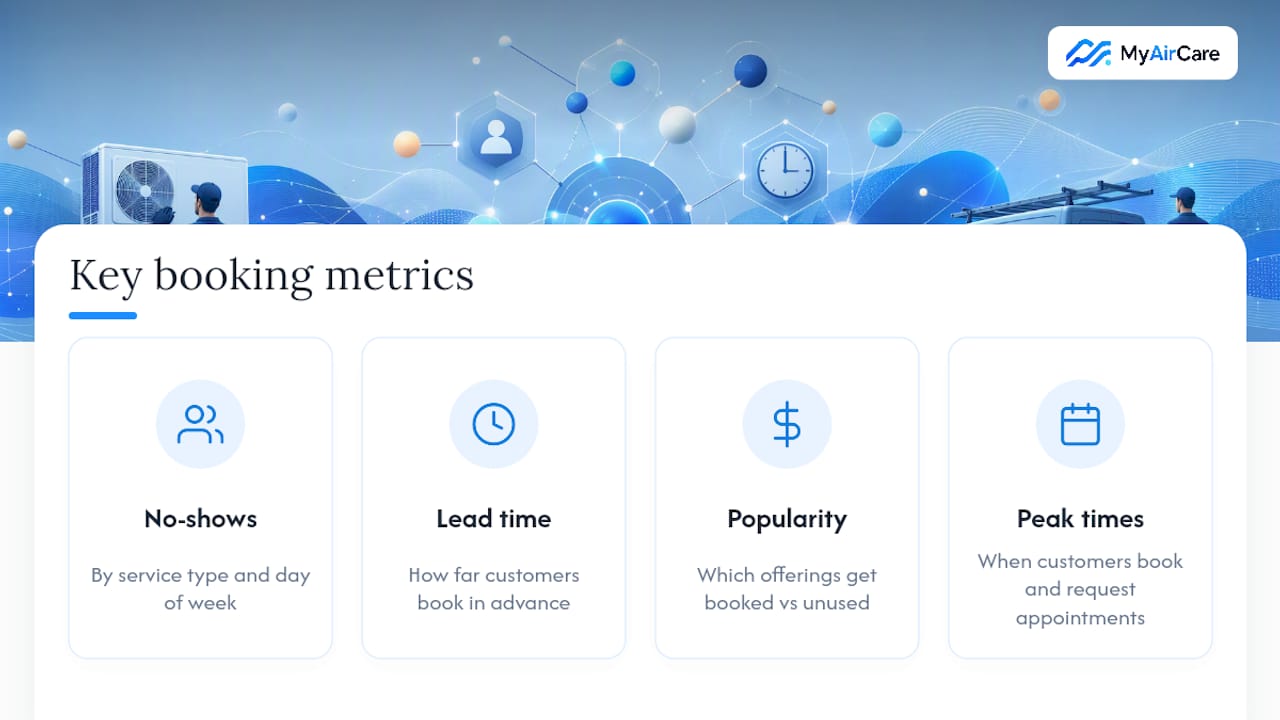
Start with no-show and cancellation rates by service type and by day of the week. If Monday mornings consistently produce more no-shows than any other slot, that's worth knowing before you keep filling that slot the same way. Look next at average booking lead time, meaning how far in advance customers book. A short average lead time might mean you need more availability visible further out, or it might mean your marketing is only reaching people who need something urgently.
Service popularity data shows which offerings actually get booked versus which sit on your page unused. That's a pricing or positioning question as much as a scheduling one. And peak booking times, both for when customers book and when they request appointments, tell you where to add staff or availability rather than guessing.
Most platforms, MyAirCare included, surface this inside the dashboard without needing a separate reporting tool. Check it monthly at minimum. A pattern that's invisible week to week, like a specific suburb generating consistently longer jobs than quoted, becomes obvious once you're looking at a month of bookings side by side instead of one job at a time.
What I've learned watching booking systems for trades in practice
Calendar sync and reminders matter more than any other feature; get those two right before touching anything else. Run a real test booking before you launch, always, because the failure you don't catch is the one a customer finds for you. Small settings like buffer times and intake questions save more admin hours than any dashboard feature. Keep adjusting in small steps after launch rather than trying to get everything perfect on day one.
— Lewis
Get your booking system running with MyAirCare
MyAirCare is the alternative to juggling calls, texts, and a paper diary for air-con cleaning businesses. Bookings, automated reminders, and Stripe payments sit in one dashboard, with a mobile app for job tracking, rescheduling, and on-site payment capture, so a job booked online arrives correctly scheduled with payment already sorted.

It suits sole traders and small teams because it's built specifically around air-con cleaning workflows, not adapted from a generic salon or gym booking tool. Reminders reduce no-shows without a phone call, and having every job on one calendar cuts the double-booking risk that comes from juggling multiple channels. You can see a working example on a live booking page built on MyAirCare, or check the pricing page to compare plans and start setting up your own booking flow today.
Sources
For platform-specific steps, check Google Calendar's appointment schedule guide and Microsoft Bookings for advanced provider and Teams options.
- Create an appointment schedule - Google Calendar Help
- Simplybook
- How to add a booking page to your website (meetergo)
- Setting up online booking in 15 minutes - FullyBooked