Send a short, personal message with a one-tap Google review link within 24 hours of completing a job. Ask every customer, never offer an incentive, and use your booking system to trigger the request automatically so nothing slips through. That is the complete method. Everything below shows you how to build it.
Your three-point starting checklist:
- Who asks: the technician on-site, or an automated SMS/email triggered when the job status moves to "completed"
- When: within 24 hours of service completion, while the experience is fresh
- What to send: a message under 35 words that includes your direct Google Business Profile review link or QR code
MyAirCare's automated job-completion SMS can carry that link for you, removing the need for any manual follow-up.
Table of Contents
- Why Google reviews matter for Australian aircon cleaning businesses
- When should you send a review request?
- What you must never do when requesting reviews
- How to create a one-tap Google review link and QR code
- Short, compliant scripts and templates you can use now
- How to automate review requests using your booking system
- How to reply to reviews and handle negative feedback
- Which metrics should you track for your review programme?
- Legal considerations under Australian consumer law
- Key takeaways
- A note on running review automation in the field
- MyAirCare takes the manual work out of review requests
- Useful sources and official references
Why Google reviews matter for Australian aircon cleaning businesses
Reviews on Google Maps and Google Search directly affect how often a local business appears when homeowners or commercial clients search for aircon cleaning nearby. A profile with recent, frequent reviews ranks higher in the local pack than a competitor with fewer or older ones. For trade services, that visibility translates directly to booking enquiries.
Beyond search placement, reviews act as social proof at the moment a potential customer is deciding whether to call. A residential homeowner comparing two aircon cleaners will almost always choose the one with more detailed, recent feedback. The same applies to facilities managers evaluating contractors for commercial sites.
Google recommends reminding customers to leave reviews and replying to every one received. A profile with a mix of honest feedback, including the occasional constructive comment, reads as more credible than a suspiciously uniform five-star record.

When should you send a review request?
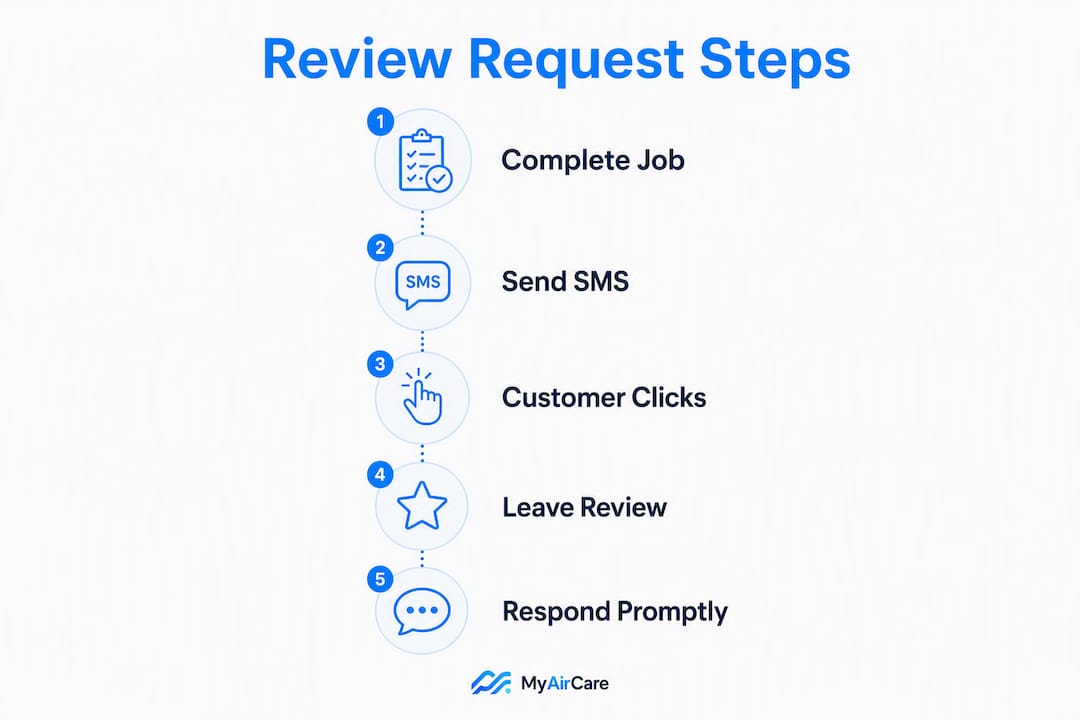
Send the first request within 24 hours of job completion, ideally the same afternoon or evening. The job is still top of mind, the customer is satisfied, and the barrier to leaving a review is lowest.
A practical cadence for most aircon cleaning operators:
- Immediate trigger: automated SMS or email fires when job status changes to "completed" or payment clears
- Follow-up: a single reminder sent 3–5 days later to customers who have not yet responded; a follow-up at this interval commonly doubles conversion
- Older customers: if you are working through a backlog of past clients, space requests out over several weeks rather than sending a bulk batch, which can cause an unnatural spike that Google may flag
On timing within the day, mid-morning and early evening tend to get higher open rates on SMS. Email performs better mid-morning on weekdays. Neither channel is strictly superior for aircon cleaning; SMS generally gets faster responses because the link is one tap away on a mobile screen.
What you must never do when requesting reviews
Google's Business Profile policy is clear: never offer a discount, gift, or any other incentive in exchange for a review. Doing so can result in reviews being removed and the Business Profile being flagged or penalised.
Three specific actions to avoid:
- Review gating: asking only customers you believe are happy, and filtering out those who might leave a low rating. Google prohibits selective solicitation; every customer must have an equal opportunity to leave feedback.
- Directing the rating: asking for a "five-star review" or any specific star count. Ask for an honest review, not a particular outcome.
- Fake or staff reviews: posting reviews from employees, family members, or fictitious accounts. Google's detection systems flag unusual review patterns.
Under Australian Consumer Law, businesses must not engage in misleading or deceptive conduct. Soliciting fake reviews, suppressing negative feedback, or presenting paid reviews as genuine customer opinions can constitute a breach of the Australian Consumer Law provisions administered by the Australian Competition and Consumer Commission (ACCC). The practical rule: ask honestly, ask everyone, and let the feedback reflect the actual service.
How to create a one-tap Google review link and QR code
Google Business Profile lets you generate a direct review link and a downloadable QR code from the dashboard. The link opens the review pop-up directly, removing the steps a customer would otherwise need to take to find the business and locate the review button.
Step-by-step:
- Sign in to your Google Business Profile at business.google.com
- Select the correct business location if you manage more than one
- In the Home tab, find the card labelled "Get more reviews" or "Ask for reviews"
- Click "Share review form" to copy the direct link
- To download a QR code, select the QR option on the same screen; note that QR code creation requires a desktop browser
- Download the QR image and save the link for use in SMS, email, invoices, and printed materials
Where to place the QR code: job completion receipts, printed job sheets left with the customer, business cards, and the back of invoice pages.
Pro Tip: Shorten the review link using a tool like Bitly before inserting it into SMS messages. A shortened link is tidier, fits within character limits, and lets you track how many customers clicked through versus how many completed a review. That click data tells you whether the friction is in the request itself or in the review submission step.
Short, compliant scripts and templates you can use now
Short, personal, conversational messages perform best for local service businesses. Keep requests under 35 words where possible and always include the direct link.
SMS (under 35 words):
Hi [Name], thanks for having us clean your aircon today. If you have a moment, an honest Google review helps us a lot: [link]. Thanks, [Your Name], [Business Name]
Email subject: Quick favour — your feedback on today's aircon clean
Hi [Name], we hope the service went well. If you're happy to share your experience on Google, it takes about a minute: [link]. We appreciate it.
In-person (verbal, at job completion): Follow-up reminder (3–5 days later, SMS):
Hi [Name], just following up on our aircon clean last week. If you have a moment, a Google review would mean a lot: [link]. No pressure at all.
Each template is compliant: no incentive is offered, no star rating is requested, and the ask is directed to all customers equally. Replace the placeholders with the customer's first name and the shortened review link.
Pro Tip: Sign off with a real first name and job role ("Sam, lead technician") rather than just the business name. A named person asking for feedback gets a noticeably higher response rate than a generic business sign-off.
How to automate review requests using your booking system
Manual follow-up is unreliable. Automating the request removes dependence on individual technicians remembering to ask, and it scales across every job without extra admin.
The minimal automation setup:
- Trigger: job status changes to "completed" or payment is confirmed
- Message: pre-written SMS or email with variable placeholders for customer name, job type, and the review link
- Follow-up logic: if no review is submitted within 3–5 days, send one reminder; no further messages after that
MyAirCare implementation example: MyAirCare's automated job-completion SMS fires as soon as a job is marked done in the mobile app. The review link can be inserted directly into that message template, along with the customer's name and the service type. Invoice footers and booking confirmation emails can carry the same link. Operators using MyAirCare's branded booking pages can also include a post-service review prompt in the confirmation flow.
Pro Tip: Use a URL shortener with click tracking on the review link in your automated messages. If a customer clicked the link but did not submit a review, a gentle reminder is appropriate. If they never opened the link, the message itself may need adjusting.
How to reply to reviews and handle negative feedback
Reply to every review, positive or negative. Google's guidance notes that responding to reviews shows that the business values customer feedback, and it signals activity to the algorithm.
Response structures:
- Positive: "Thanks [Name], glad the service met expectations. We look forward to helping you again." Keep it short and genuine.
- Neutral (no comment, 3–4 stars): "Thanks for the rating, [Name]. If there's anything we can improve, feel free to reach out directly."
- Negative: "Thanks for the feedback, [Name]. We're sorry the service didn't meet your expectations. Please contact us at [email/phone] so we can resolve this." Never argue publicly or deny the experience.
Recurring themes in negative reviews are operational data. If three customers in a month mention a technician arriving late, that is a scheduling issue worth fixing, not just a reputation problem. Review replies also influence local SEO; a business that responds consistently tends to rank better than one that ignores feedback.
Which metrics should you track for your review programme?
| Metric | Definition | How to calculate | Target |
|---|---|---|---|
| Review conversion rate | Percentage of requests that result in a published review | Reviews received ÷ requests sent | A reasonable starting benchmark is a modest percentage |
| Review volume per month | Total new reviews published in a calendar month | Count from Business Profile dashboard | Steady growth month-on-month |
| Average star rating | Mean rating across all published reviews | Calculated automatically in Business Profile | An average rating considered good or above |
| Link click-through rate | Percentage of recipients who clicked the review link | Clicks (from URL shortener) ÷ messages sent | Identifies friction in the message vs. submission step |
| Response time to reviews | Average time between a review being published and a reply | Track manually or via Business Profile notifications | Within 48 hours |
Review volume and average rating are the primary indicators. Click-through rate is the diagnostic: a high click rate with a low conversion rate points to friction in the Google review submission process itself, not in the request message.
Legal considerations under Australian consumer law
The Australian Consumer Law (ACL), enforced by the ACCC, prohibits misleading or deceptive conduct in trade or commerce. In the context of online reviews, this covers several specific scenarios.
Publishing or facilitating fake reviews, whether written by staff, paid third parties, or fictitious accounts, is a breach of the ACL. The ACCC has taken action against businesses for this conduct, and penalties can be substantial. Suppressing genuine negative reviews through selective solicitation (review gating) can also constitute misleading conduct if it creates a false impression of the business's overall reputation.
Offering incentives for reviews, even framed as a "thank you gift" after the review is submitted, risks breaching both Google's policy and the ACL if the incentive is not disclosed. The safest position is to ask for honest feedback with no attached reward, which aligns with both Google's requirements and Australian law.
This article provides general information, not legal advice. Operators should confirm current obligations with the ACCC or a qualified legal professional.
Key takeaways
The most effective way to request Google reviews is a short, personal message with a one-tap link sent within 24 hours of job completion, automated through your booking system, and sent to every customer without exception.
| Point | Details |
|---|---|
| Timing is the primary lever | Send the first request within 24 hours; a follow-up at 3–5 days commonly doubles conversion. |
| One-tap link reduces friction | Generate the direct review link and QR code from your Google Business Profile dashboard. |
| Compliance is non-negotiable | Never incentivise, never gate, never request a specific star rating. |
| Automation beats manual follow-up | Trigger requests from job-completion status to cover every customer consistently. |
| MyAirCare automates the workflow | MyAirCare's job-completion SMS and reminder scheduling can carry the review link automatically. |
Implementation checklist:
- Generate your Google Business Profile review link and QR code
- Shorten the link for SMS and set up click tracking
- Load a short, compliant message template into your booking system
- Set the automation trigger to "job completed" or "payment confirmed"
- Schedule one follow-up reminder at 3–5 days for non-responders
- Reply to every review within 48 hours
A note on running review automation in the field
The most common mistake operators make is treating review requests as a separate task rather than part of the job completion workflow. When the ask depends on a technician remembering to send a message at the end of a long day, it simply does not happen consistently. Connecting the request to the job-completion trigger in a booking system means every customer receives the same prompt regardless of how busy the day was.
The follow-up message is often underestimated. Many customers intend to leave a review but get distracted. A single, politely worded reminder sent a few days later, with no pressure and a clear link, recovers a meaningful portion of those intended reviews. The key is sending only one follow-up; more than that crosses into pestering and can damage the customer relationship.
MyAirCare takes the manual work out of review requests
Having fewer reviews than your competitors is often a process problem, not a service problem. MyAirCare builds the review request directly into the job completion workflow: the automated SMS fires when a job is marked done, the review link is embedded in the message, and a scheduled reminder handles the follow-up without any manual input.

The platform also handles branded booking pages, secure payments via Stripe, invoice generation, and team scheduling, so the review request is one part of a complete post-job workflow rather than a standalone task bolted on at the end. Operators using MyAirCare's booking and management platform report less time on admin and a more consistent customer experience across every job.
To see how the booking and review workflow looks from the customer side, visit a live booking page or check the pricing page to find the plan that fits your operation.
Useful sources and official references
- Google Business Profile: create a review link or QR code — official instructions for generating your direct review link and downloadable QR code from the Business Profile dashboard
- Google Business Profile: tips to get more reviews — Google's own guidance on asking for reviews, responding to feedback, and maintaining a credible profile
- MyAirCare — the booking and management platform referenced throughout this guide for automating review requests in Australian aircon cleaning businesses